
Reporting Examples using ksTFL
ksTFL Development Team
2026-10-03
Source:vignettes/Reporting_Examples_with_ksTFL.Rmd
Reporting_Examples_with_ksTFL.Rmd
This vignette presents a realistic progression of reporting examples
— from minimal tables/listings/figures/text to a full clinical-style
table with multi-level headers, spanning stub columns, multi-line
titles/footnotes, reusable styles, and session defaults. All examples
use exported ksTFL helpers only; set eval=TRUE locally to
run the R chunks.
Category and scope
This is a workflow-first vignette for readers who already know the basic pipeline and want practical patterns they can adapt directly.
Related reading:
- Getting Started for the core pipeline.
- Styling Guide, Advanced StyleRows, and Column Width Management for deeper feature coverage.
Workflow overview
Each example follows the same end-to-end pattern so you can reproduce the full pipeline locally:
- Prepare small, self-contained sample data (run the setup chunk with
eval=TRUE). - Build
TFL_specobjects usingcreate_table(),create_figure()orcreate_text(). - Tune columns and styles via
define_cols()andadd_style()(usef_combine()to reference combined styles). - Assemble specs into a
TFL_reportwithcreate_report()(this consolidates style combinations, assignsdataRef, and aborts here if any referenced style id was never defined withadd_style()or an atom). - Render to a DOCX with
write_doc()(one-step: saves JSON metadata and produces the final document).
Keep in mind:
- Use named styles (
add_style()) and reference them by id; avoid inspecting or mutating internal fields. - Use
print(spec)for concise, user-facing previews rather than reading internals, or use the package add-ins for interactive inspection. - Use
metaPath = tempdir()during examples to avoid writing permanent files while you experiment.
# Sample datasets used by multiple sections (run locally before executing examples)
set.seed(2025)

demog_tbl <- data.frame(
  subject_id = sprintf("S%03d", 1:24),
  age = sample(25:80, 24, TRUE),
  sex = sample(c("M","F"), 24, TRUE),
  trt = sample(c("Placebo","DrugA"), 24, TRUE),
  stringsAsFactors = FALSE
)

vitals_tbl <- data.frame(
  subject_id = rep(demog_tbl$subject_id, each = 2),
  visit = rep(c("Baseline","Week 12"), times = 24),
  sbp = round(rnorm(48, 120, 12)),
  dbp = round(rnorm(48, 75, 8)),
  stringsAsFactors = FALSE
)

labs_tbl <- data.frame(
  subject_id = demog_tbl$subject_id,
  ALT = round(rnorm(24, 28, 9)),
  AST = round(rnorm(24, 26, 8)),
  stringsAsFactors = FALSE
)

# Example plot file (created locally when running the vignette)
# type = "cairo" avoids needing an X11 display (headless-safe for pkgdown/CI)
out_dir <- file.path(tempdir(), "ksTFL-reporting-examples")
dir.create(out_dir, recursive = TRUE, showWarnings = FALSE)
dir.create(file.path(out_dir, "meta"), recursive = TRUE, showWarnings = FALSE)

plot_file <- file.path(tempdir(), "example_plot.png")
png(plot_file, width = 600, height = 400, type = "cairo")
plot(demog_tbl$age, vitals_tbl$sbp[1:24], xlab = "Age", ylab = "SBP", main = "Age vs SBP")
dev.off()

## Session-wide package and document settings:
tfl_reset_options()
tfl_set_options(
  add_header(c("CRO Example LLC.", "CONFIDENTIAL", "Page {PAGE} of {NUMPAGES}")),
  add_header("Study: Miracle Drug 001"),
  add_footer(c("Showcase examples", "Program: inst/examples/showcase")),
  output_directory = out_dir,
  footnotePlace = "repeated",
  meta_directory = file.path(out_dir, "meta")
)
1 — Simple minimal table
spec_min_table <- create_table(data = demog_tbl, cols = c(subject_id, age, sex, trt))
spec_min_table <- add_title(spec_min_table, "Demographics (minimal)")

# Print shows a compact overview (useful in interactive sessions)
print(spec_min_table)
# close the example chunk
print() on a TFL_spec provides a readable overview including titles
and defined columns: 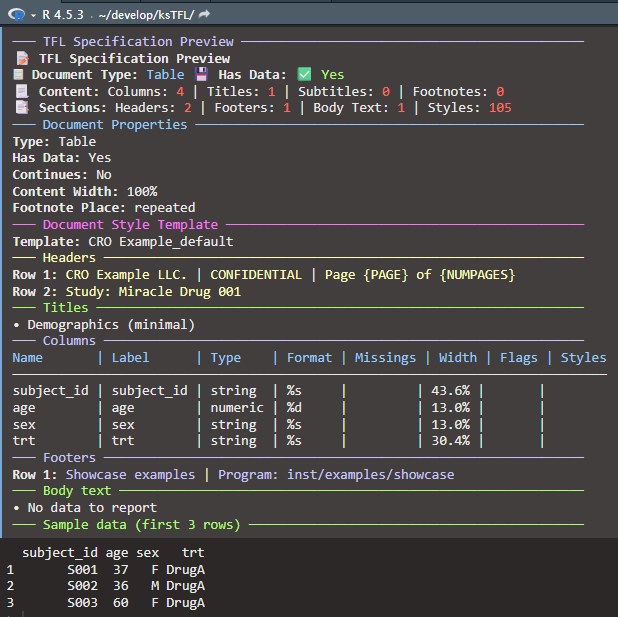
# End-to-end: wrap single spec into a report and render to DOCX
rpt_min_table <- create_report(spec_min_table)
write_doc(rpt_min_table, name = "tbl_min")
Rendered output:
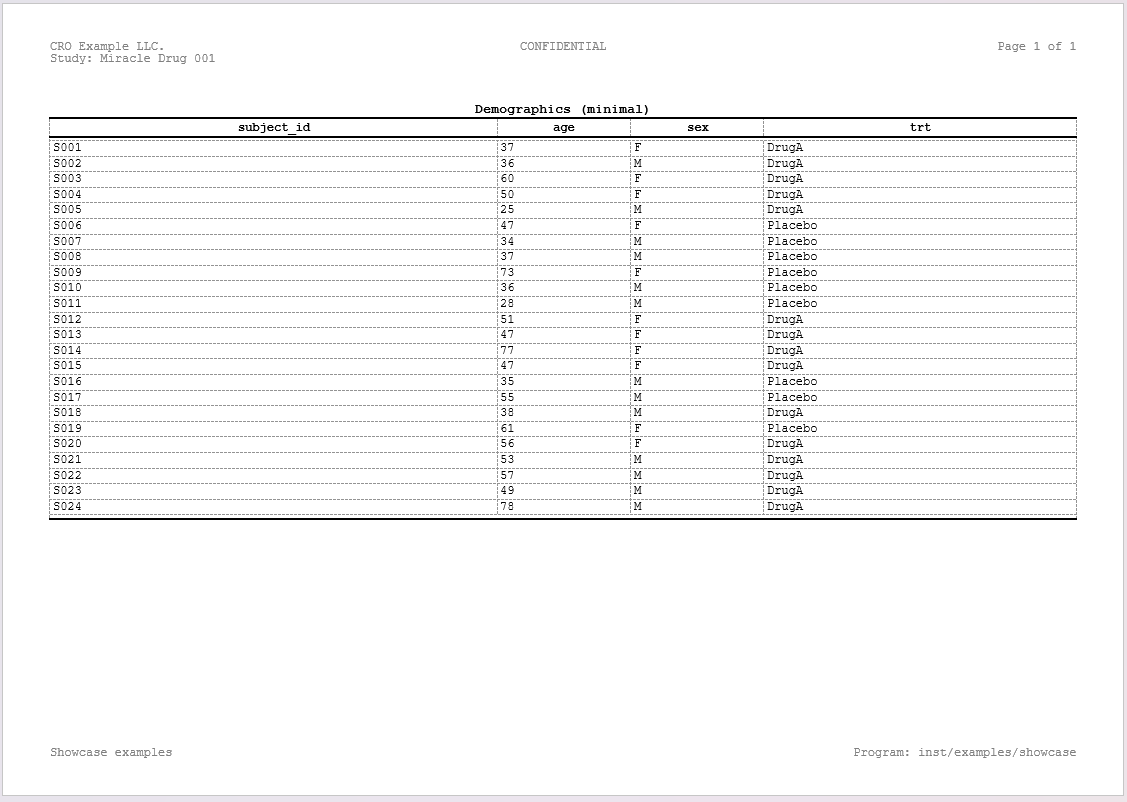
A note on the
colsparameter — Thecolsargument increate_table()selects which columns are rendered and their left-to-right order. The underlying data frame is stored in full, so columns omitted fromcolsare not dropped from the data — they remain available tocompute_cols()conditions. For instance, you can exclude a helper column likeflagfrom the report (cols = c(subject_id, age, sex, trt)) yet still testflagin a condition. The limit is the other side of the pipeline:define_cols()and the column arguments of thec_*()actions accept only columns included incols. To style or manipulate a helper field, keep it incolsand hide it withisVisible = FALSE. You never need to pre-filter or reorder the data frame before passing it to ksTFL —colshandles selection and ordering in one place.
2 — Simple minimal figure
spec_min_fig <- create_figure(plot_file)
spec_min_fig <- add_title(spec_min_fig, "Example: Age vs SBP")
print(spec_min_fig)
# close example chunk
Display size comes from
figureWidth/figureHeight (defaults 6in x 4in,
scale mode fixed) — not from the file’s pixels; the default
box stretches an image whose aspect ratio differs. To keep the source
aspect ratio, set
set_document(figureScaleMode = "fitKeepAR"), or pass
figureWidth / figureHeight that match the
image ratio.
# End-to-end: render the single-figure report to DOCX
rpt_min_fig <- create_report(spec_min_fig)
write_doc(rpt_min_fig, name = "fig_min")
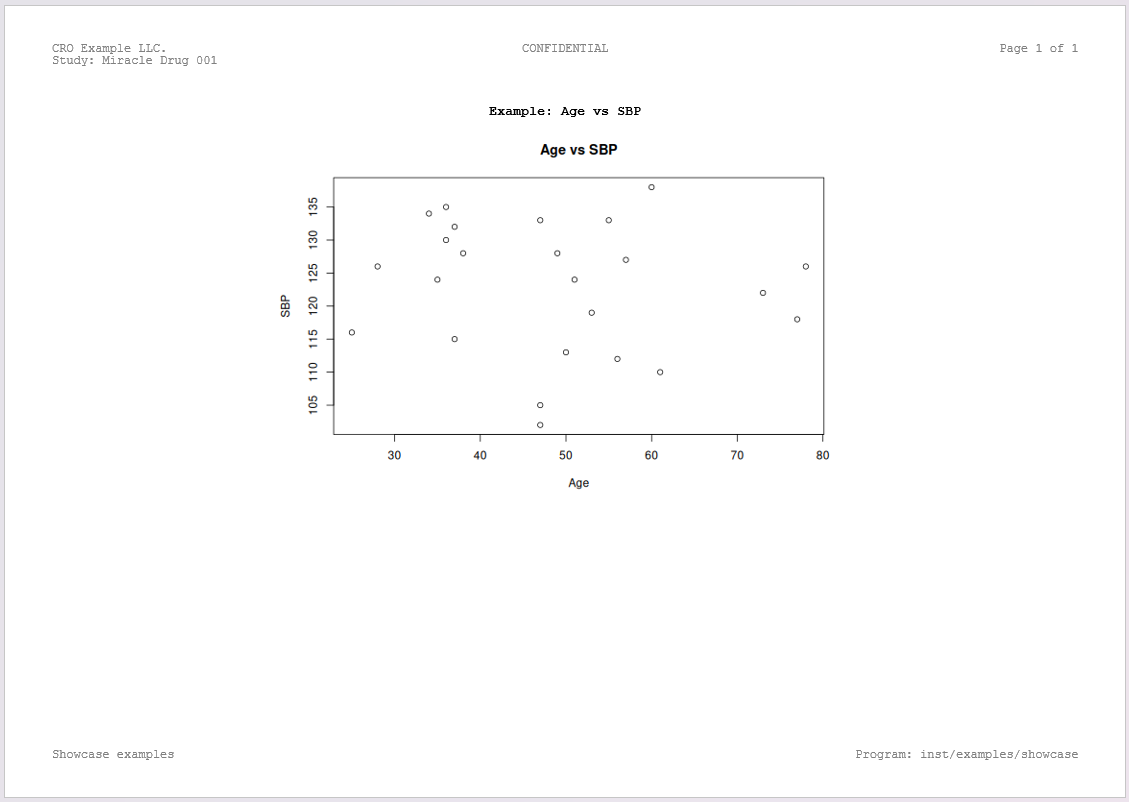
Rendered output:
3 — Simple minimal text (narrative)
## Narrative object:
nartv <- list(
  subj = 'ABC-001',
  enrldt = '01JAN2022',
  compldt = '22JUN2022',
  discreas = 'Completed per protocol',
  nae = 3,
  listae = list('Nausea', 'Vomiting', 'Headache')
)

## Formatted text of the subject narrative:
text <- sprintf('The subject <b>%s</b> entered study %s and discontinued the study %s with a reason <i>"%s"</i>.<br>During the treatment period subject had the following %d AEs:<br><b>- %s</b>',
        nartv[["subj"]],
        nartv[["enrldt"]],
        nartv[["compldt"]],
        nartv[["discreas"]],
        nartv[["nae"]],
        paste(nartv[["listae"]], collapse = '<br>- ')
)
# End-to-end: render the narrative report to DOCX
spec_min_text <- create_text() |> add_title("Sample Narrative Text")
spec_min_text <- add_body_text(spec_min_text, text)
rpt_min_text <- create_report(spec_min_text)
write_doc(rpt_min_text, name = "nar_min")
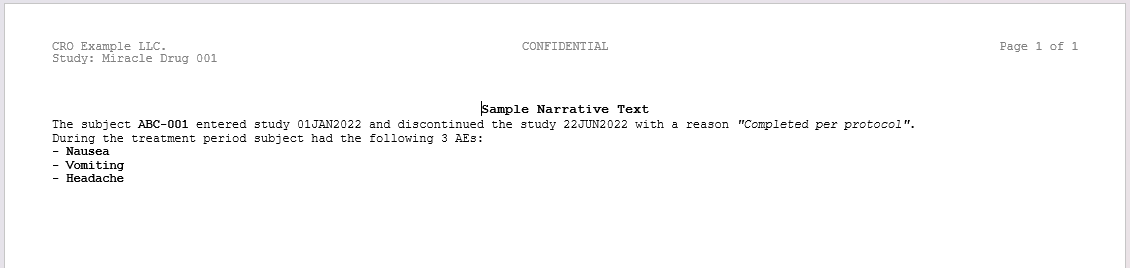
Rendered output:
4 — Define columns: single, batch, and parameter recycling
Why define_cols()?
After creating a table with create_table(), column
properties are auto-detected from the data. However, you often need
to:
- Customize column labels for readability
- Specify numeric formats (e.g., “%.2f” for 2 decimal places)
- Control visibility, styling, or special behaviors (ID column, deduplicate, page breaks)
- Lock or adjust column widths for better layout
define_cols() is the primary tool for these
customizations. It supports both single-column and
batch updates, with intelligent parameter
recycling to keep code concise.
Example 1: Single column definition
The simplest case — modify one column at a time:
# Define one column
spec_single <- create_table(data = demog_tbl, cols = c(subject_id, age, sex, trt))
spec_single <- define_cols(spec_single, subject_id, label = "Subject ID", isID = TRUE)

# Another single column call (chaining is encouraged)
spec_single <- define_cols(spec_single, age,
                           label = "Age (years)",
                           type = "numeric",
                           format = "%.0f")

print(spec_single)
# close example chunk
Example 2: Batch update with single value (recycling to all columns)
Update multiple columns with the same value — the value is automatically recycled:
# Apply single format to multiple columns
spec_batch <- create_table(data = vitals_tbl, cols = c(sbp, dbp))
spec_batch <- define_cols(spec_batch, c(sbp, dbp),
                          type = "numeric",      # Applied to both
                          format = "%.1f",       # Applied to both
                          valueStyleRef = "b")  # Applied to both

print(spec_batch)
# close example chunk
Why this matters: Instead of writing three separate
define_cols() calls, you write one line and the package
applies the same values to all selected columns.
Example 3: Batch update with per-column values (1-to-N mapping)
Update multiple columns with different values — provide a vector matching the number of columns:
# Different label and format for each column
spec_mapped <- create_table(data = demog_tbl, cols = c(age, sex, trt)) |>
define_cols(c(age, sex, trt),
            label = c("Age (years)", "Biological Sex", "Treatment Group"),
            type = c("numeric", "string", "string"),
            format = c("%.0f", NA, NA) #format not applicable for strings -> NA
)

print(spec_mapped)
# close example chunkImportant: The vector length must match exactly:
Length 1: applies to all columns
Length N (where N = number of columns): applies one-to-one
Any other length: raises an error
Example 4: Multiple define_cols() calls (chaining with
|>)
Combine define_cols() calls to layer customizations —
each call merges with previous settings (last-win strategy):
# Start with basic table
spec_chain <-
  create_table(data = demog_tbl, cols = c(subject_id, age, sex, trt)) |>
# First pass: set all labels
  define_cols(c(subject_id, age, sex, trt),
             label = c("Subject ID", "Age", "Sex", "Treatment")) |>
# Second pass: set numeric formatting for age
  define_cols(age, type = "numeric", format = "%.0f") |>
# Third pass: mark subject_id as ID column (repeats on page breaks)
  define_cols(subject_id, isID = TRUE)

print(spec_chain)
# close example chunk
This approach makes it easy to:
Define labels first (human-readable column names)
Then apply formatting (numeric/string types, decimals)
Then apply special behavior flags (ID, deduplicate, etc.)
5 — Set document properties (hasData, content width, placement)
Key function: set_document()
hasData: Whether the spec carries data to render (auto-detected for tables;FALSErenders body text instead). Never set it on a figure spec — a figure withhasData = TRUErenders a blank page (known open bug).footnotePlace: Where footnotes render —"repeated"(under the table on every page, default),"last_page", or"doc_footer"(inside the Word footer part).contentWidth: Content width (e.g., “100%”, “6.5in”, “16.51cm”)isContinues: Show titles/subtitles only on the first page of a multi-page output (defaultFALSErepeats them on every page). To run a spec onto the same page as the previous one, usecontinuousSectioninstead.
Example 1: hasData flag
spec <- create_table(demog_tbl)  # auto-detects whether the frame has rows
# With zero rows the report automatically shows the body_text placeholder
# ("No data to report") instead of an empty table. The placeholder text
# can be set manually via add_body_text().

# hasData = FALSE prints the body text INSTEAD of the table even when
# rows exist — that is how the no-data fallback is forced manually:
spec <- set_document(spec,
  hasData = FALSE)  # override the auto-detected value

print(spec)
Example 2: Content width and placement
spec <- create_table(demog_tbl)

spec <- set_document(spec,
  contentWidth = "95%",        # Narrower content (default 100%)
footnotePlace = "repeated") # Footnotes on every pageNotes:
Most defaults are sensible; you typically only need
set_document()for content widthMultiple calls merge with last-win strategy (later calls override earlier ones)
6 — Combine table/figure/text into a single report
report_simple <- create_report(spec_min_table, spec_min_fig, spec_min_text)
# Render combined simple report to DOCX
write_doc(report_simple, name = "report_simple")
create_report() preserves input order and consolidates
styles. Pass toc = TRUE to write_doc() to
insert a Word TOC field: only titles tagged with
toclevel = 1..9 in add_title() become entries,
and Word shows the list after you update the field (right-click >
Update Field, or F9).
Passing a named list of specs
When specs are built independently (e.g. in a loop, across separate program files, or inside a function that returns a list), they can be collected into a named list and passed as a single argument:
specs <- list(
  t_dm   = spec_min_table,
  t_fig  = spec_min_fig,
  t_text = spec_min_text
)

# Equivalent to create_report(spec_min_table, spec_min_fig, spec_min_text)
# but the list can be assembled dynamically.
report_from_list <- create_report(specs)

# List names become key prefixes:
# names(report_from_list)
# [1] "t_dm_<hash>"   "t_fig_<hash>"  "t_text_<hash>"
List arguments may be freely mixed with variadic specs and reports:
extra_spec <- create_text() |> add_body_text("Appendix note.")

report_mixed <- create_report(extra_spec, specs)
Unnamed list elements fall back to
<name>_<i>_<hash> (e.g.
unl_1_094c8e9287e0be59, where unl is the
argument or object name). TFL_report objects inside a list
are flattened with their original keys preserved.
7 — Column widths: automatic calculation and locking
How automatic column width works
When you create a table with create_table(), ksTFL
automatically analyzes the data and distributes column widths
proportionally:
- Initial analysis: For each column, the package examines data values (length, type, number of decimals)
- Width calculation: Numeric columns typically get wider if they have many decimals or large values; short text columns get narrower
- Proportional distribution: All widths are normalized to sum to 100% (or remaining available width)
-
Default:
autoColWidth = TRUEin package options (can be changed withtfl_set_options())
Example: for a table with columns id
(short numeric), description (long text),
value (numeric), auto-detected widths might land near
id = 20%, description = 50%,
value = 30%.
Example 1: Accept auto-calculated widths
The simplest approach — let the package handle width distribution:
# Create table; widths are auto-calculated from data characteristics
spec_auto <- create_table(data = labs_tbl, cols = c(subject_id, ALT, AST))
spec_auto <- define_cols(spec_auto, c(subject_id, ALT, AST),
                         label = c("Subject ID", "ALT (U/L)", "AST (U/L)"))

# Print to see auto-calculated widths
print(spec_auto)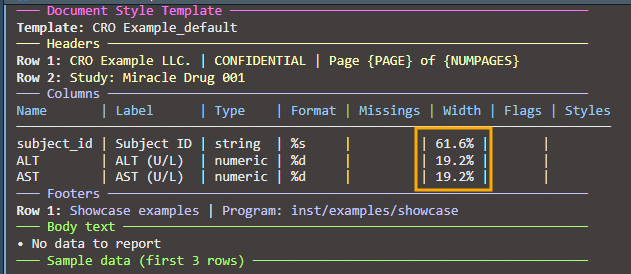
Example 2: Lock one column, auto-adjust others
Lock a specific column width while others recalculate to fill remaining space:
# Lock subject_id at 15%, let ALT and AST split the remaining 85%
spec_lock1 <- create_table(data = labs_tbl, cols = c(subject_id, ALT, AST))
spec_lock1 <- define_cols(spec_lock1, subject_id,
                          label = "Subject ID",
                          colWidth = "15%")  # Lock at 15%

# When auto-recalculation runs (automatic), ALT and AST widths are recalculated
# to maintain their initial proportion while filling the remaining 85%

print(spec_lock1)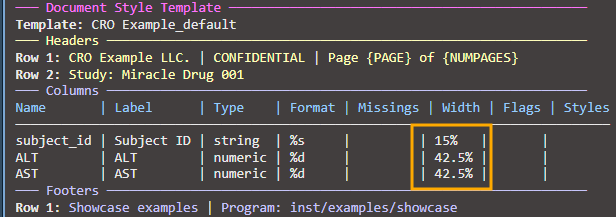
Example 3: Lock multiple columns with relative widths
Lock several columns and let others auto-adjust:
# Lock two columns, let the third auto-adjust
spec_lock_multi <- create_table(data = labs_tbl, cols = c(subject_id, ALT, AST))
spec_lock_multi <- define_cols(spec_lock_multi, subject_id,
                               label = "Subject ID",
                               colWidth = "12%")
spec_lock_multi <- define_cols(spec_lock_multi, ALT,
                               label = "ALT (U/L)",
                               colWidth = "40%")

# AST automatically fills remaining 48% (100% - 12% - 40%)

print(spec_lock_multi)
Example 4: Mixed units (percentages and absolute)
Combine percentage-based widths with absolute units:
# Lock subject_id at 2 cm, others in percentages
spec_mixed <- create_table(data = labs_tbl, cols = c(subject_id, ALT, AST))
spec_mixed <- define_cols(spec_mixed, subject_id,
                          label = "Subject ID",
                          colWidth = "2cm")  # Absolute width
spec_mixed <- define_cols(spec_mixed, ALT,
                          label = "ALT (U/L)",
                          colWidth = "35%")   # Percentage of remaining

print(spec_mixed)
Important: colWidth accepts
%, cm, and in only. At render,
absolute (cm/in) columns keep their exact width and every percentage
column resolves against the space left after the absolute
columns are placed — so “35%” means 35% of the remaining area, not of
the full page. Budget widths in one unit when the exact layout
matters.
Example 5: Width validation and constraints
The package validates column widths to prevent invalid configurations:
spec_valid <- create_table(data = labs_tbl, cols = c(subject_id, ALT, AST))

# VALID: Set a reasonable relative width
spec_valid <- define_cols(spec_valid, ALT,
                          colWidth = "30%")  # OK: 30% is valid

# INVALID: 100% leaves no room for the other two columns. The real error:
# spec_valid <- define_cols(spec_valid, ALT, colWidth = "100%")
# Cannot set column `ALT` to "100%"
# x This would leave insufficient space for the remaining 2 unlocked
#   columns to meet the minimum width of 0.5%.
# i After this change, 2 columns need 1% total. Remaining space available: 0%.
# i Maximum allowed relative width for `ALT`: 99.0%
# i Reduce the proposed width or adjust other locked widths

# INVALID: below the fixed per-column floor. The real error:
# spec_valid <- define_cols(spec_valid, AST, colWidth = "0.2%")
# Column width "0.2%" is below minimum allowed
# x Relative widths must be at least 0.5%
# i Proposed: 0.2%

print(spec_valid)
Width validation rules:
- The width you set has a fixed floor: 0.5% relative, 0.2cm absolute (cm/in only — see Column Width Management for accepted units).
- A lock must leave at least
minColWidth(default 0.5%) for every column that stays unlocked; the error names the exact maximum allowed. -
tfl_set_options(minColWidth = ...)changes that reserve for the remaining unlocked columns — it does not lower the 0.5% floor of the width you type yourself. - Locked relative widths may sum to at most 99.5% while any column stays unlocked.
Error messages are detailed and always show the maximum allowed width when you exceed a limit — the two blocks above are their verbatim output.
8 — Table with titles, subtitles and footnotes
spec_multi <- create_table(data = labs_tbl, cols = c(subject_id, ALT, AST))
spec_multi <- add_title(spec_multi, "Laboratory Results")
spec_multi <- add_subtitle(spec_multi, "Selected hepatic enzymes by subject")
spec_multi <- add_footnote(spec_multi, "Values are shown as observed.")

spec_multi <- define_cols(
  spec_multi,
  c(subject_id, ALT, AST),
  label = c("Subject ID", "ALT (U/L)", "AST (U/L)")
)

print(spec_multi)
# close example chunk
# Render the multilevel table to DOCX
rpt_multi <- create_report(spec_multi)
write_doc(rpt_multi, name = "tbl_multi")
Rendered output:
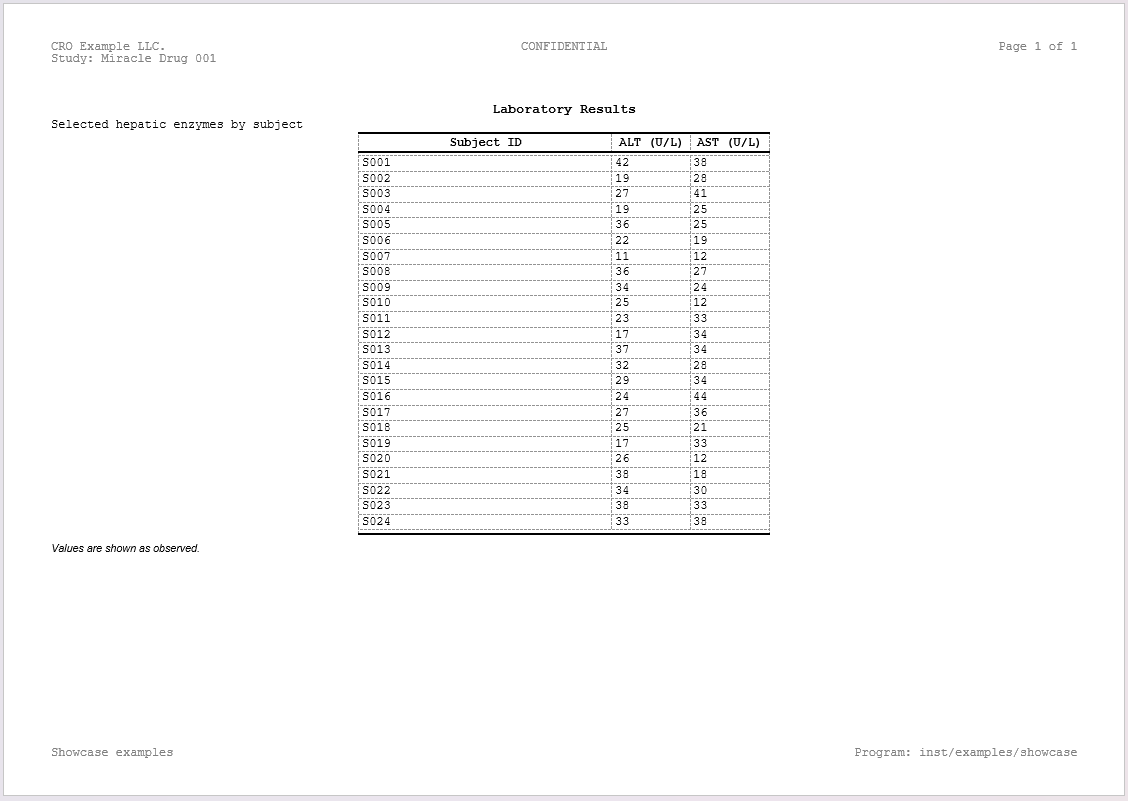
9 — span columns (spanning headers)
Why spanning headers?
In clinical tables you group related columns under a common header:
“Baseline” over visit, sbp, dbp,
pulse; “Week 12” over the repeated measures at the next
visit.
stubOrder is the band row: HIGHER
numbers render HIGHER on the page, and stubOrder = 1 sits
directly above the column-label row. Give siblings on the same row the
same stubOrder (their column sets must be disjoint) and the
umbrella band above them a higher number. Omitting
stubOrder assigns every call its own level — a staircase —
so set it explicitly whenever more than one band exists.
Spanning headers (called “spans” in ksTFL) are separate from column labels — they sit above the column labels and group multiple columns. Multiple spans can be stacked at different vertical levels.
Example 1: Single spanning header
Create one stub that groups related columns:
# Start with demographics table
spec_span_simple <- create_table(data = demog_tbl, cols = c(subject_id, age, sex, trt))
spec_span_simple <- define_cols(spec_span_simple,
                                c(subject_id, age, sex, trt),
                                label = c("Subject","Age","Sex","Treatment"))

# Add a spanning header for "Demographics" above age and sex
spec_span_simple <- add_span_header(spec_span_simple,
                                    cols = c("age", "sex"),
                                    label = "Demographics")

print(spec_span_simple)Result: A table with column labels on one row and a
“Demographics” header spanning age+sex columns above it: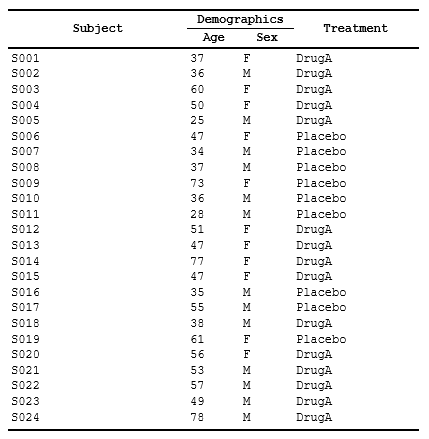
Example 1b: Using tidyselect helpers with spanning headers
add_span_header() supports all tidyselect expressions —
use helpers for flexible column selection:
# Table with mixed column types
mixed_data <- data.frame(
  id = 1:10,
  age_baseline = rnorm(10, 45, 10),
  age_follow = rnorm(10, 46, 10),
  weight_baseline = rnorm(10, 70, 10),
  weight_follow = rnorm(10, 71, 10)
)

spec_tidysel <- create_table(mixed_data)

# Using starts_with() helper
spec_tidysel <- add_span_header(spec_tidysel,
                                cols = starts_with("age"),
                                label = "Age Measurements",
                                stubOrder = 1) |>
# Using col position
add_span_header(cols = c(4,5),
               label = "Weight Measurements",
               stubOrder = 1) |>
# Using negation (-) to exclude columns
add_span_header(cols = -id,
                label = "Baseline and Follow",
                stubOrder = 2)

print(spec_tidysel)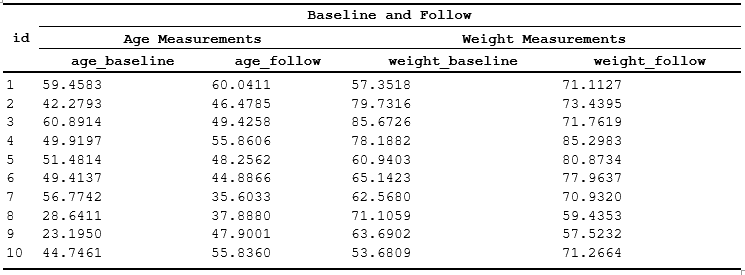
Tidyselect expressions supported:
Ranges:
cols = age:weight(all columns between age and weight)Helpers:
cols = starts_with("age"),contains("baseline"),matches("^w")Negation:
cols = -id(all columns except id)Combinations:
cols = c(starts_with("age"), weight_baseline)
Example 2: Styled spanning headers
Apply styles to stub labels using labelStyleRef:
# First, create a style for stub labels
spec_spans_style <- create_table(data = demog_tbl, cols = c(subject_id, age, sex, trt))

spec_spans_style <- add_style(spec_spans_style,
                              id = "span_header",
                              s_font(bold = TRUE, font_size = "12pt"),
                              s_paragraph(alignment = "center"),
                              s_table_style(background_color = "#E8E8E8"))

# Define columns
spec_spans_style <- define_cols(spec_spans_style,
                                c(subject_id, age, sex, trt),
                                label = c("Subject ID", "Age", "Sex", "Treatment"),
                                valueStyleRef = 'ac')

# Add span with style reference
spec_spans_style <- add_span_header(spec_spans_style,
                                    cols = c("age", "sex"),
                                    label = "Demographics",
                                    labelStyleRef = "span_header")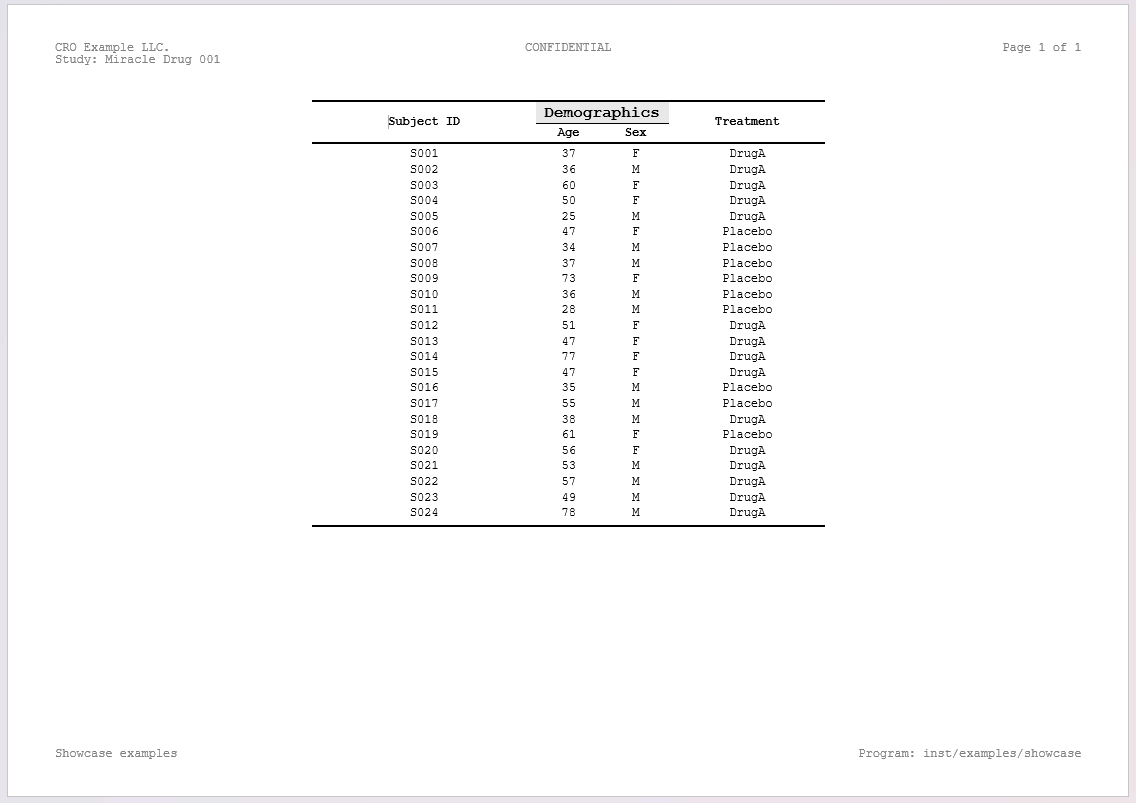
Notes:
labelStyleRefcan be a single style name or multiple styles combined withf_combine()Span labels inherit the applied style, making grouped columns visually distinct
Styles must be defined before referencing them in
add_span_header()
Example 3: Paragraph borders on spanning headers
When a cell border is applied to a spanning header, it stretches
across the entire merged cell. A paragraph border instead follows the
text width — useful for visually separating groups without a full-width
line. Paragraph borders are also unaffected by structural border
overrides (header_top_border,
header_bottom_border), giving full control on intermediate
header rows.
spec_para <- create_table(data = demog_tbl, cols = c(subject_id, age, sex, trt))

# Paragraph border style — the underline follows the text, not the cell edge
spec_para <- add_style(spec_para, id = "span_underline",
  s_font(bold = TRUE),
  s_paragraph(
    alignment = "center",
    borders = s_borders(
      bottom = s_border(color = "#000000", width = "0.5pt", line_style = "single")
    )
  )
)

# Or use the built-in paragraph border atom
spec_para <- add_span_header(spec_para,
  cols = c("age", "sex"),
  label = "Demographics",
  labelStyleRef = f_combine("b", "ac", "pb_th")  # bold + center + thin paragraph bottom border
)
# Render stubbed table report to DOCX
rpt_stub <- create_report(spec_spans_style)
write_doc(rpt_stub, name = "tbl_stub", outDir = "./out", metaPath = tempdir())
10 — Styles and f_combine() for combined style
references
Why named styles?
Styles are foundational in professional reporting:
Define once, reference many times — consistency across your document
Easy to update: change one style definition and all references automatically pick up the change
Composable: combine base styles (bold, red text) into complex styles for specific use cases
ksTFL uses a named style system: you define styles
with add_style() giving each an id, then
reference them by name wherever styles attach:
labelStyleRef/valueStyleRef in
define_cols(), labelStyleRef in
add_span_header(), and styleRef in the
c_*() actions.
Example 1: Define base styles
Create atomic styles that focus on one aspect (font, alignment, color):
# Create a table spec
spec_base_styles <- create_table(data = demog_tbl, cols = c(subject_id, age, sex, trt))

# Define reusable base styles
spec_base_styles <- add_style(spec_base_styles, id = "bold_header",
                              s_font(bold = TRUE, font_size = "12pt"))

spec_base_styles <- add_style(spec_base_styles, id = "right_align",
                              s_paragraph(alignment = "right"))

spec_base_styles <- add_style(spec_base_styles, id = "light_gray_bg",
                              s_table_style(background_color = "#F5F5F5"))

# Apply to columns
spec_base_styles <- define_cols(spec_base_styles,
                                c(subject_id, age, sex, trt),
                                label = c("Subject ID", "Age", "Sex", "Treatment"),
                                labelStyleRef = c("bold_header", "", "", ""))

print(spec_base_styles)
# close example chunk
Example 2: Combine styles with f_combine()
Apply multiple styles to a single element using
f_combine() — they merge at render time:
# Create spec and define base styles
spec_combined <- create_table(data = demog_tbl, cols = c(subject_id, age, sex, trt))

# Define atomic styles
spec_combined <- add_style(spec_combined, id = "bold_text", s_font(bold = TRUE))
spec_combined <- add_style(spec_combined, id = "red_color", s_font(color = "#CC0000"))
spec_combined <- add_style(spec_combined, id = "centered", s_paragraph(alignment = "center"))

# Combine styles: bold + red text + centered
spec_combined <- define_cols(spec_combined,
                             subject_id,
                             label = "Subject ID",
                             labelStyleRef = f_combine("bold_text", "red_color", "centered")) |>

define_cols(c(sex, trt),
            label=c('Sex', 'Treatment'),
            labelStyleRef = f_combine('b','i'),
            valueStyleRef = f_combine('ar', 'i')
            ) |>
# Different columns can use different combinations
define_cols(age, label = "Age",
            labelStyleRef = f_combine("bold_text", "centered"),
            valueStyleRef = 'ac')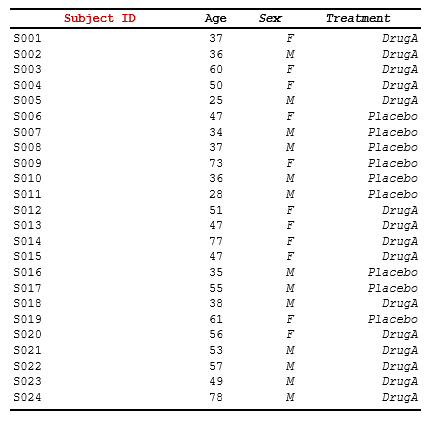
How f_combine() works:
Takes multiple style names as arguments
Returns a reference object that tells the package to merge those styles
Order matters for last-win conflict resolution (later arguments override earlier ones)
11 — Conditional row actions with compute_cols()
Overview: While define_cols() sets
properties globally for all rows, compute_cols() applies
conditional actions to specific rows matching a
condition.
Common use cases:
Style rows where a specific value occurs (e.g., first/last occurrence, threshold-based)
Merge columns in certain rows (e.g., group headers)
Insert separator or summary rows programmatically
Example 1: Conditional styling
Apply a style to columns in rows matching a condition:
# Sample data with groups
data <- data.frame(
  group = c("A", "A", "B", "B", "C"),
  metric = c("Value 1", "Value 2", "Value 3", "Value 4", "Value 5"),
  count = c(10, 20, 15, 25, 30)
)

# Create spec and define styles
spec <- create_table(data) |>
  add_style(id = "group_header", s_font(bold = TRUE, color = "#0000FF")) |>
  add_style(id = "emphasize",    s_table_style(background_color = "#FFFFCC"))

# Style the first row of each contiguous group run (firstOf is run-length
# based — sort the data so each group is one block)
spec <- spec |>
  compute_cols(firstOf(group), c_style(c(metric, count), styleRef = "group_header"))

# Apply conditional styling: highlight rows with high count
spec <- spec |>
  compute_cols(count > 20, c_style(count, styleRef = "emphasize"))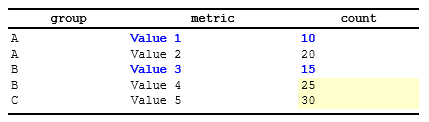
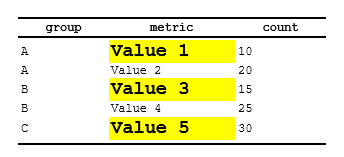
Example 2: Combining styles in conditional rows
Apply multiple styles to a single column using
f_combine():
spec <- create_table(data) |>
  add_style(id = "bold",      s_font(bold = TRUE)) |>
  add_style(id = "large",     s_font(font_size = "14pt")) |>
  add_style(id = "highlight", s_table_style(background_color = "#FFFF00"))

# Apply combined styles to first group occurrence
spec <- spec |>
  compute_cols(firstOf(group),
    c_style(metric, styleRef = f_combine("bold", "large", "highlight"))
  )
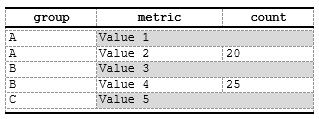
Example 3: Column merging in conditional rows
Merge adjacent columns for rows matching a condition:
spec <- create_table(data) |>
  add_style(id = "group_label", s_table_style(background_color = "#D9D9D9"))

# Merge metric and count columns for first occurrence (group header style)
spec <- spec |>
  compute_cols(firstOf(group),
    c_merge(c(metric, count), styleRef = "group_label")
  )
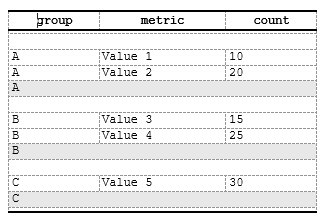
Example 4: Inserting separator rows
Insert empty rows (separators) or rows with content from another column:
spec <- create_table(data) |>
  add_style(id = "separator", s_table_style(background_color = "#E8E8E8"))

# Insert empty separator above first group occurrence
spec <- spec |>
  compute_cols(firstOf(group),
    c_addrow(pos = "above")  # Empty row, no value_from
  )

# Insert summary row below last group occurrence (using a specific column as content)
spec <- spec |>
  compute_cols(lastOf(group),
    c_addrow(pos = "below", value_from = "group", styleRef = "separator")
  )
Example 4b: Page break insertion
Force a page break when a group ends (useful for long groups):
spec <- spec |>
  compute_cols(lastOf(group),
    c_pageBreak()
  )
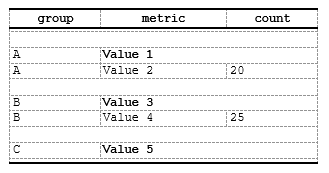
Example 5: Multiple actions on same rows
Combine styling, merging, and row insertion in a single
compute_cols() call:
spec <- create_table(data) |>
  add_style(id = "header",    s_font(bold = TRUE)) |>
  add_style(id = "separator", s_table_style(background_color = "#E8E8E8"))

# For first group occurrence: add separator, style, and merge
spec <- spec |>
  compute_cols(firstOf(group),
    c_addrow(pos = "above"),  # Add empty separator
    c_style(metric, styleRef = "header"),  # Style metric column
    c_merge(c(metric, count))  # Merge adjacent columns
  )
Key concepts:
Conditions are unevaluated expressions evaluated at report generation time (during
create_report())Helper functions (
firstOf(),lastOf(),firstRow(),lastRow(),rowNumber(),everyNth(),firstOfBlock()) are only available insidecompute_cols()conditions — they are not standalone exported functions. Seevignette("Advanced_StyleRows")for full details.Multiple calls accumulate: calling
compute_cols()multiple times on the same spec appends actionsMultiple actions in one call: same row can have styling, merging, and row insertion simultaneously
Overlapping conditions: when several conditions match one row, all their actions apply — style properties combine (later block wins on conflicts); overlapping merges warn and keep the first.
value_from: optional in
c_addrow()— omit it for empty separator rows.Performance: Conditions evaluated once per row during report assembly; style consolidation happens automatically
12 — Render to DOCX with write_doc()
What write_doc() does
write_doc() is the primary output function. It combines
two lower-level steps into one:
-
Validates and serializes the report to JSON,
writing metadata and data files to
metaPath -
Renders the JSON to a DOCX file in
outDir
create_report() → write_doc() → output.docxExample: Assemble and render a multi-spec report
Tip: Use
tfl_list_templates()to discover available template names (e.g.,"Navy_Pro","Carbon_Dark"). Userun_styles_editor()to interactively preview and customize templates.
# Create multiple specs
table_spec <- create_table(data = labs_tbl, cols = c(subject_id, ALT, AST))
table_spec <- add_title(table_spec, "Laboratory Results")
table_spec <- set_page_style(table_spec, docTemplate = "Navy_Pro")

text_spec <- create_text()
text_spec <- add_body_text(text_spec, "All values are from the locked database.")
text_spec <- set_page_style(text_spec, docTemplate = "Carbon_Dark")

# Assemble into report
report_full <- create_report(table_spec, text_spec)

# A) Per-spec templates (default): each spec uses its own docTemplate
write_doc(report_full, name = "example_report", outDir = "./out", metaPath = tempdir())

# B) Global override: force one template for all specs
write_doc(
  report_full,
  name = "example_report_global_override",
  outDir = "./out",
  metaPath = tempdir(),
  overrideTemplate = system.file("templates", "Navy_Pro.json", package = "ksTFL", mustWork = TRUE)
)
In this workflow:
-
write_doc(..., overrideTemplate = NULL)keeps per-specdocTemplatestyling. -
write_doc(..., overrideTemplate = <name_or_path>)applies a single global template to all specs.
Key parameters:
-
report: ATFL_reportobject created viacreate_report(). -
name: Base name for the output DOCX ("example_report"becomesexample_report.docx). -
outDir: Directory where the output DOCX is written. -
metaPath: Directory where intermediate JSON and data files are written.
Advanced: If you need to inspect the JSON before
rendering (e.g. for debugging or CI pipelines), you can split the call
into save_report() + replay_report(). See
?write_doc and ?replay_report for details.
13 — Session-wide tfl_options: common headers/footers
and default body text
Why session options?
In a real clinical reporting workflow, many tables/listings share:
- Common headers (study name, database version, confidentiality notice)
- Common footers (company name, page numbers, disclaimers)
- Default body text (standard disclaimers or methodology notes)
Instead of adding these to every spec, use
tfl_set_options() to set session defaults once. All specs
created afterward inherit these settings.
Example 1: Set basic session options
# Set session defaults (applies to all NEW specs created after this call)
tfl_set_options(
  add_header("Study ABC", "Phase II Safety Study", "CONFIDENTIAL"),
  add_footer("Company Confidential", "Page {PAGE} of {NUMPAGES}")
)

# Create spec — automatically inherits headers/footers from options
spec_with_opts <- create_table(data = demog_tbl, cols = c(subject_id, age, sex, trt))
spec_with_opts <- add_title(spec_with_opts, "Demographics Table")

print(spec_with_opts)
# close example chunk
Key point: Headers and footers from
tfl_set_options() are automatically applied to new specs.
No need to call add_header() again.
Example 2: Override session options in a specific spec
You can override session defaults on individual specs:
# Session options are still in effect from previous example

# Create a spec with session defaults
spec_default <- create_table(data = labs_tbl, cols = c(subject_id, ALT, AST))
spec_default <- add_title(spec_default, "Lab Results (using session defaults)")

# Create another spec and add its own header row ON TOP of the defaults
spec_override <- create_table(data = demog_tbl, cols = c(subject_id, age))
spec_override <- add_header(spec_override, "Study XYZ", "Different Study", "CONFIDENTIAL")
spec_override <- add_title(spec_override, "Demographics (extra header)")

print(spec_default)   # session header only
print(spec_override)  # session header row + this extra header row
# close example chunkRule: spec-level
add_header()/add_footer() ADD rows on top of
the session defaults — they do not replace them. To fully control
headers for one program, call tfl_reset_options() first or
set the defaults per run.
Example 3: Check and reset session options
Inspect current session options and reset to defaults:
# Check current options
current_options <- tfl_get_options()
str(current_options)

# Get a single option
current_missings <- tfl_get_option("missings")
cat("Current missings representation:", current_missings, "\n")

# Reset to package defaults
tfl_reset_options()

# Now new specs will use package defaults instead of your custom session options
spec_reset <- create_table(data = demog_tbl, cols = c(subject_id, age))
print(spec_reset)
# close example chunk
Final notes
Running examples locally: set the top setup chunk
eval=TRUE (it generates the sample data and writes the demo
plot), then execute the chunks in order. All code uses exported
functions only.
For more details on function parameters, see the roxygen
documentation: ?create_table, ?define_cols,
?add_style, ?write_doc, etc.